![GU_Logo_Secondary_Color-3.png]](https://support.goodunited.io/hs-fs/hubfs/GU_Logo_Secondary_Color-3.png?height=40&name=GU_Logo_Secondary_Color-3.png)
This guide explains how to reconnect & re-authorize your Facebook account to GoodUnited Connect. The process takes about 5 minutes.
Be sure to check out the video walkthrough: Youtube
Quick Start
Confirm page admin access and business portfolio association. You can click the following link to confirm you have Business Portfolio Admin Access (https://business.facebook.com/latest/settings/) and check the following sections - see screenshots.
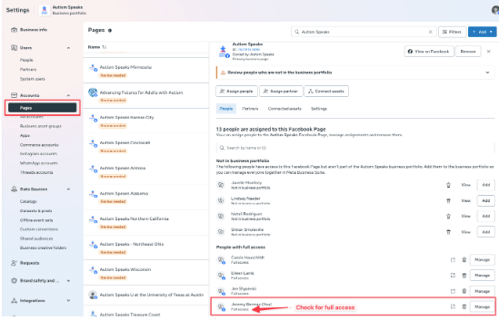
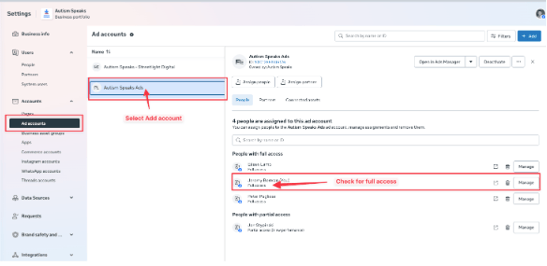
Once admin is confirmed, click the link below to re-authorize (functionality coming soon!):
- Account (re-authentication): https://gu-app.goodunited.io/legacy-signup/facebook
Reauthentication Steps
- Start Facebook Login
- Click Continue with Facebook.
- Review the access request.
- Choose Business Portfolio
- Select your organization’s business portfolio.
- Ignore advertising restriction warnings.
- Select Facebook Page
- Choose the page you want to connect.
- Select Ad Accounts (Required)
- Select all ad accounts under:
- This Portfolio
- Other Portfolios
- Missing ad accounts can cause issues.
- Select all ad accounts under:
- Pixels (Optional)
- Skip pixel selection if prompted.
- Confirm Permissions
- Review permissions.
- Click Confirm.
- Complete Connection
- Wait 30–60 seconds.
- Do not refresh or close the browser.
- Click Finish.
- Finalize in GoodUnited
- Select your Facebook Page from the dropdown.
- Click Connect.
- You will land on the Insights dashboard.
Critical Reminders
- Select all ad accounts (most common issue)
- Pixels are optional
- Ignore advertising warnings
- Do not refresh during connection
Common Issues
- Ad account not visible: Confirm admin access to all ad accounts.
- Connection times out: Try Chrome or Firefox, or clear cache.
- Facebook Page not listed: Confirm page admin access and portfolio association.
Need Help?
- Chat support: Chat icon (bottom left)
- Knowledge base: Available through chat
- Support ticket: Create a ticket for help