![GU_Logo_Secondary_Color-3.png]](https://support.goodunited.io/hs-fs/hubfs/GU_Logo_Secondary_Color-3.png?height=40&name=GU_Logo_Secondary_Color-3.png)
What’s New:
- A new action, “Save to Field,” is available in the Journey Builder Action node.
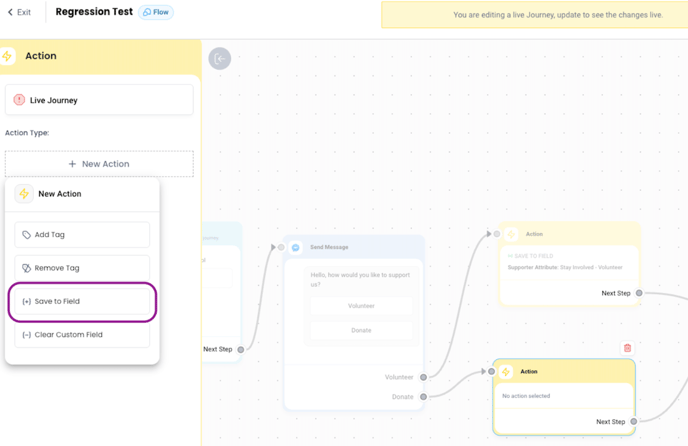
- Users can now:
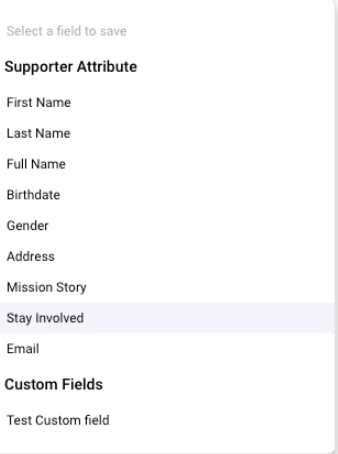
- Select any existing Custom Field or a list of supported System Attributes from a dropdown.
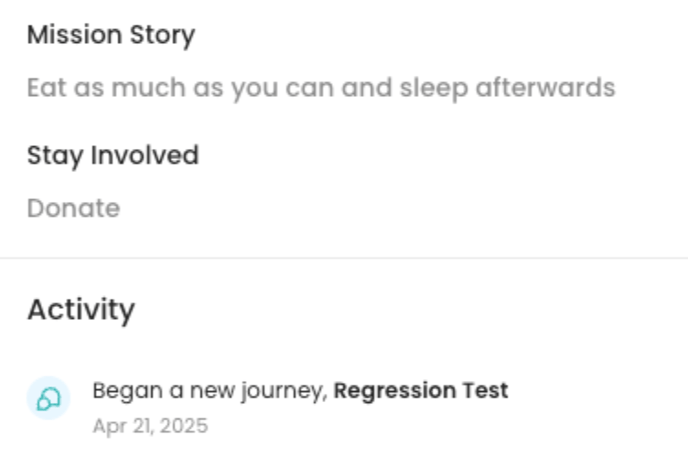
- Input a static value that will be written to the field for any supporter who passes through the journey path.
- If the value entered does not match the expected format or type (e.g., text for numeric fields, incorrect email syntax), the system will block publishing and show a descriptive error.
- Error messages reference both the field and the invalid value to aid debugging.
- Examples of error messages:
- Address Field: Action Node: The address 123 Main St, USA in "Address" for the Save to Field action is invalid. Follow the format 123 Main St, Charleston, SC, USA.
- Numeric Field: Action Node: The value in "Test Number" for the Save to Field action must be numeric. Please enter only numbers.
- The action is visually indicated by a plus sign, contrasting with the existing "Clear Field" action, which uses a minus sign.
- Iconography: The action is visually indicated by a {+} icon, the inverse of the {–} Clear Field action.
Why It Matters
- Without the ability to programmatically write values into Custom Fields or System Attributes, journey personalization and segmentation are limited. Teams are forced to rely on tags, which are less structured, harder to query, and not tied to supporter profiles.
- This enhancement enables more intelligent data capture directly within journeys. Supporters can be marked with meaningful attributes (e.g., interests, preferences, cohort data) as they progress through different flows, which unlocks downstream automation, personalization, and richer reporting. Validation ensures data consistency and prevents publishing errors that could result in broken journeys or bad data.
Known Limitations
- Creating new Custom Fields from the Journey Builder is not supported.
- Be extremely careful: Existing field values can be overwritten by this action — there is no built-in validation to block updates to already-populated fields.
- Validation checks the format/type. Address data accuracy checks with the Amazon list of addresses.
- Be extremely careful: Bulk overwrites of sensitive fields (e.g., Email) must be handled with caution as every supporter through the path will be updated.
Test Cases – Save to Field in Journey Builder
- Basic Save to Custom Field
- Add “Save to Field” action in a journey.
- Select a Custom Field like "Interest".
- Input a value: "Environment".
- Publish and test journey.
- Confirm that “Environment” is saved to the “Interest” field for supporters passing through.
- Save to System Attribute
- Select a supported System Attribute like "First Name".
- Input value: "Julia".
- Trigger journey and validate that supporter’s name updates correctly.
- Validation Error – Invalid Address Format
- Select “Address” as the field.
- Enter value: "123".
- Attempt to publish.
- Confirm publishing is blocked and error reads:
- Action Node: The address 123 in "Address" for the Save to Field action is invalid. Follow the format 123 Main St, Charleston, SC, USA.
- Multiple Field Updates in a Single Journey
- Use two separate “Save to Field” actions with different fields and values.
- Confirm both fields are correctly updated post-journey.
- Value Overwriting
- For a supporter who already has a value in the target field, pass them through the journey.
- Confirm the new value replaces the existing one.